How to blur faces in a photo on iPhone
You photographed a street, a party or a school event, and a stranger's face is in the frame. Before you post it, you want that face gone. On an iPhone this takes a few taps, and the photo never has to leave the phone.
I use Censor & Blur Faces: Pixero for this. It is an on-device photo editor for iPhone, and hiding faces is one of its tools. Here is how it works.
Blur faces automatically
- Open Pixero and pick a photo from your library.
- Choose the Redact tool and leave the mode on Faces.
- Tap Find faces. The app finds every face in the photo and draws a box around each.
- Tap a box to leave that face as it is. The faces you keep are the ones you tap.
- Tap the Blur button, which names the count, for example Blur 2 faces.
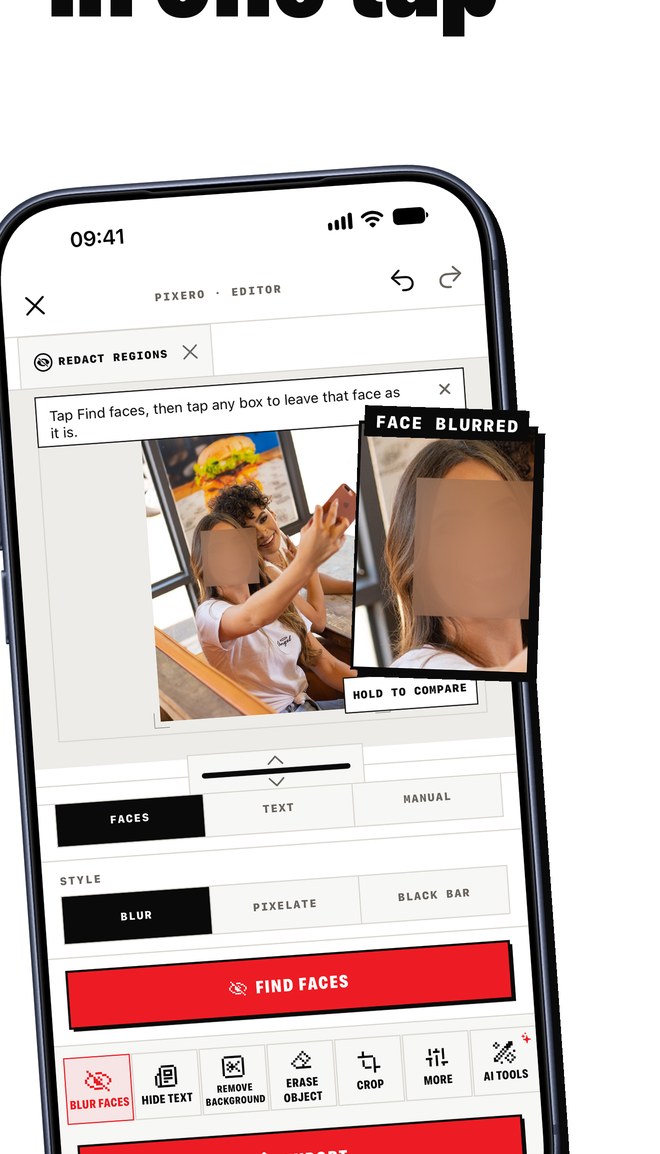
Face detection runs on the phone with Apple's Vision framework. Pixero's privacy policy says photos are not uploaded to a server.
Blur, pixelate or black bar
The Style row has three choices: Blur, Pixelate and Black bar. Blur keeps the shape of the picture, pixelate turns the face into coarse squares, and a black bar covers it completely. If the face must never be recognized, use the black bar.
When automatic detection misses a face
Detection can miss a face that is small, turned away or partly covered. Look at the boxes before you apply anything. If a face has no box, switch to Manual mode, draw a region over it and apply the same style. When detection fails or finds nothing, the app offers a one-tap switch to Manual.
The same Redact tool has a Text mode that finds text in the photo, so a license plate, a name tag or a street sign can be hidden the same way.
Undo and export
Redactions are steps in the edit, so you can undo and redo them. When you are done, export as JPEG, PNG, HEIC or PDF, save to Photos, or share straight from the app.
Blurring faces in a video
Pixero also has a Video blur tool. It hides faces, text or regions you choose, with the same three styles, and the sound is kept. Preview is free, and exporting the redacted video needs Pro. Check the whole result before you share it, because detection can miss a face in some frames, and the audio is not changed.
Get the app
Censor & Blur Faces: Pixero is on the App Store for iPhone (iOS 17 or later). More about it: Pixero on resrom.com.